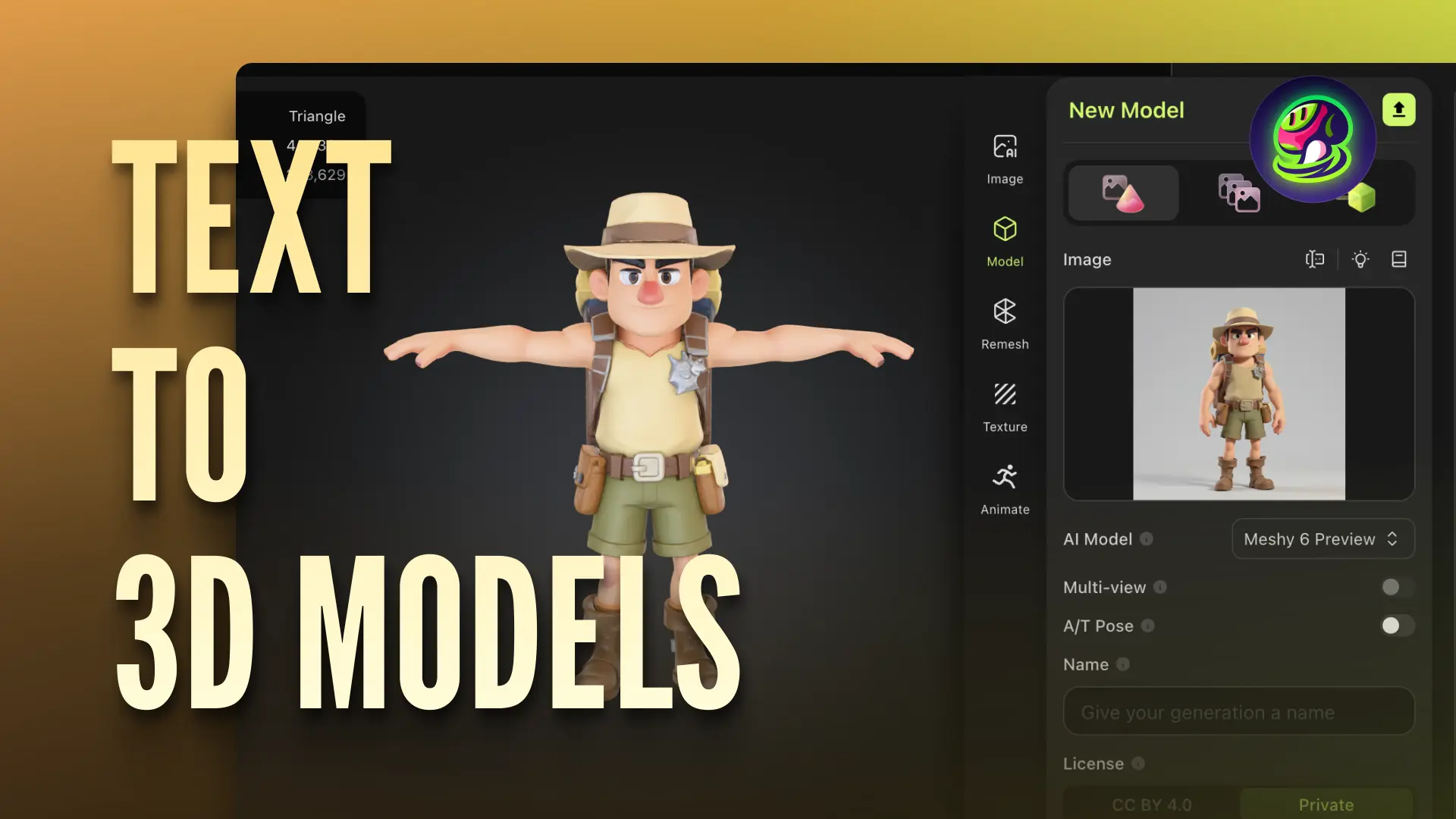
Imagine a game studio gearing up to place a market scene. The designers need a lantern, tea cart, and robot vendor. Modeling these items manually could prove time-consuming before even testing them in a game. With Meshy, they could describe an object, examine the model, adjust its surface, and export it. Because the programs work online, designers can test ideas in 3D without expensive modeling software.
What Is Meshy?
Meshy is one of the leading AI 3D model generators. It is a full browser-based platform that creates a 3D model from prompts and reference pictures. It features Text to 3D, Image to 3D, AI texturing, AI image generation, remeshing, auto-rigging, and animation. Its free tier allows users to test the workflow before choosing a paid plan.
Creators can consider Meshy as the best AI 3D model generator for concepts, game assets, printable figures, and product visuals. However, the right platform depends on quality, budget, license, and purpose.
Main Meshy Features
Meshy offers multiple AI-powered 3D creation tools in a single browser-based application, providing a seamless way for people to transform an initial thought into a functional product. Below are the main features that this platform provides to help users through the process.
Text to 3D
Text to 3D uses a prompt to create a textured model. The user enters textual information to signify what elements should be included in the 3D print, what materials to use, surface details, colors, style, and other significant aspects. For instance, the example provided on the website states that the input ‘metal desk fan’ with blades and a wire cage would produce better results than a simple ‘desk fan’ prompt.
Image to 3D and Multi-Image Input
Image to 3D function allows importing an image, a sketch, or a drawing and transforming it into a 3D model. In some cases, a single image may be insufficient to show all sides of an object, so the option to use multiple views is available. Up to four images of the same product can be uploaded to represent different sides, the front, the back, the overall shape, and surface details.
AI Texturing, Rigging, and Animation
Meshy’s AI will texture any surface from a prompt or reference image. Request brushed stone, painted metal, and glazed ceramics. You can auto-rig your characters for animation. Textured and rigged parts need to be viewed at joints, hands, delicate areas, and patterned surfaces.
Export Formats, Free Tools, and API
Meshy offers STL, OBJ, GLB, FBX, USDZ, BLEND, 3MF, and DXF export options. These formats are available for use in game engines, editors, augmented reality, web viewers, and slicing programs for 3D printers.
The free browser suite includes file conversion, an online viewer, a compression tool, and STL Repair for fixing imperfect meshes. It is necessary to examine files for print because printed surfaces need to have sufficient thickness and cannot have any holes.
Meshy’s API offers text suggestion, image-to-text, remeshing, texturing, auto-rigging, and animation features for developers. Some functions are only available under specific plans.
How to Create a Model With Meshy
Creating a first 3D model with Meshy is performed in the browser—a lightweight process, which consists of two primary steps: defining the correct input and exporting the final asset. Follow the comprehensive guidelines below to achieve a high-quality result on your first try.
Step 1: Select the Generation Mode
Use either Text to 3D mode for textual descriptions or Image to 3D mode for images as an input type. Additionally, make sure to choose multiview if multiple perspectives need to be considered for the creation of a consistent 3D model.
Step 2: Prepare the Clear Input
For text-based commands, create a detailed description of the desired object, including materials, styles, and additional details. When using image input, define the perspectives and use orthogonal views. Pay specific attention to the types of lighting.
Step 3: Generate and Inspect
Once the 3D model has been generated, preview it in a 3D viewer and make the necessary adjustments. Consider the model from different perspectives and inspect the accuracy of the details. While a front view is usually an informative starting point, there is a possibility some of the model’s features may have been incorrectly placed or defined.
Step 4: Refine the Results
Improve the prompt or references of the wrong shape. Use AI texturing for surface updates and remeshing for topology. Rig characters after ensuring the correctness of shape and pose.
Step 5: Export the File
Select a suitable format. GLB is appropriate for web projects. FBX is for video games, animation, and virtual reality, OBJ is widely supported for editing, and STL or 3MF is for 3D printing. Verify scale, material, and orientation after importing.
Frequently Asked Questions
Is Meshy fully browser-based?
Yes. Its primary generation, viewing, texturing, and free tool processes all work online. Exported assets can then be edited in desktop applications.
Can Meshy use several reference images?
Yes. Multi-view image to 3D can take up to four images of the same object, allowing the program to give information from different angles.
Does Meshy replace manual modeling?
No. While it can help speed up the ideas and sketching process, complex models still need to be reviewed and manually refined by humans.
Final Thoughts
Meshy enables text and image generation, multi-image inputs, texturing, rigging, animation, extensive exports, free tools, and API access. Its free tier offers a good starting point. However, prior to finalizing any results, it is advisable to double-check the geometry, textures, scale, licensing rights, and overall suitability for a specific application.