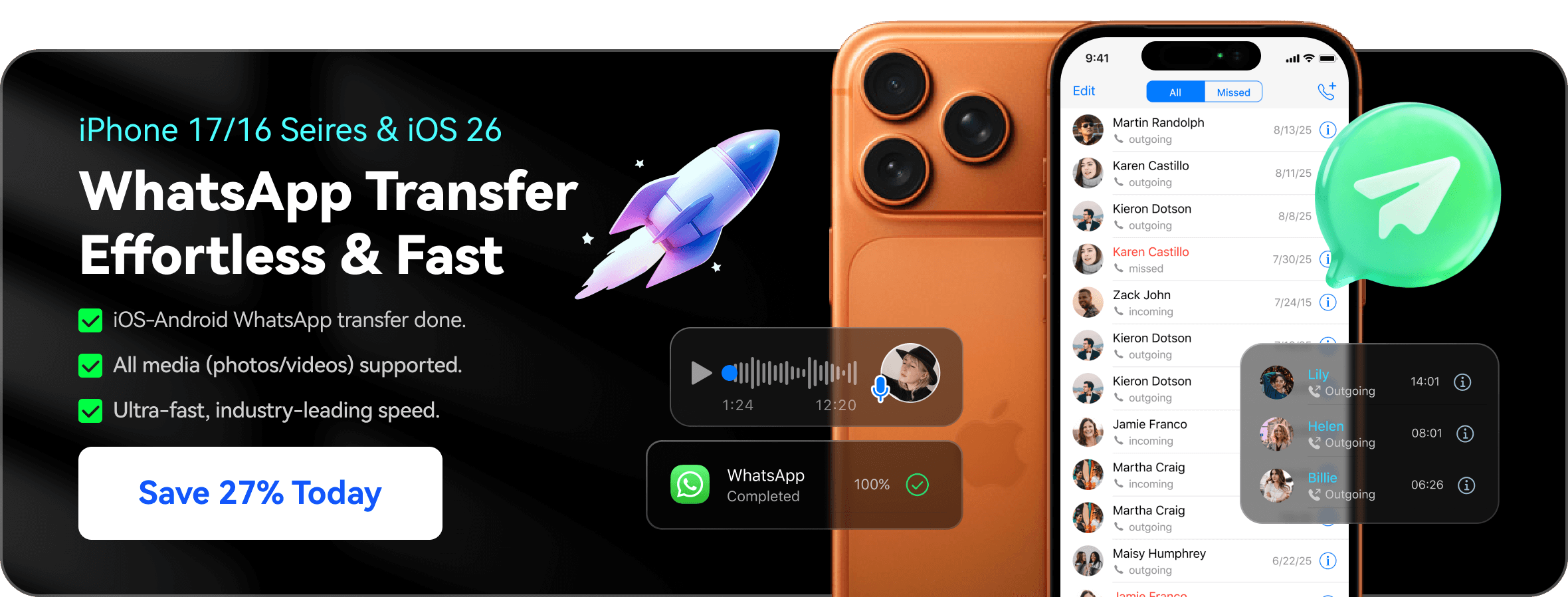
Quick answer: Wondershare Dr.Fone is one of the best tools for transferring WhatsApp data to a new device.
Switching from Android to iPhone (News - Alert) 17 is easier than ever in 2026 — except when it comes to WhatsApp migration. Because Android and iOS store WhatsApp data differently, transferring chats, media files, and WhatsApp Business history between the two platforms can still be challenging.
There are currently three main ways users transfer WhatsApp messages from Android (News - Alert) to iPhone 17:
- Apple Move to iOS
- WhatsApp cloud migration during setup
- Dedicated transfer tools like Wondershare Dr.Fone
The best option depends on whether the iPhone has already been set up, how much WhatsApp data needs to be transferred, and whether users want to avoid factory resetting the device.
Which WhatsApp Transfer Method Is Best in 2026?
Different transfer methods work better for different situations.
Use Apple (News - Alert) Move to iOS If:
- Your iPhone 17 is brand new
- You are still in the setup process
- You only need basic chat migration
- You do not mind resetting the device if needed
Use Wondershare Dr.Fone If:
- Your iPhone 17 is already set up
- You want to avoid factory reset
- You need to transfer large chat histories
- You use WhatsApp Business
- You want chats, photos, videos, voice notes, and attachments transferred together
Compared with Apple’s native migration workflow, Wondershare Dr.Fone offers more flexibility for users who need full WhatsApp migration without restarting device setup.
Method 1: Transfer WhatsApp with Apple Move to iOS
Apple’s Move to iOS app allows Android users to transfer WhatsApp messages during the initial iPhone setup process.
Steps to Transfer WhatsApp Using Move to iOS
1. Install Move to iOS on your Android phone.
2. Turn on your iPhone 17 and begin setup.
3. Select Move Data from Android.
4. Connect both devices using the verification code.
5. Choose WhatsApp transfer.
6. Wait for the migration process to complete.
7. Install WhatsApp on iPhone and log in with the same phone number.
Limitations of Move to iOS
While Apple’s official solution is free, many users still experience limitations:
- Only works during initial setup
- Requires factory reset if setup is already completed
- Large WhatsApp backups may fail
- Transfer speed can be slow
- Some media files may not migrate correctly
For users with large chat histories or already-configured iPhones, dedicated transfer software is often easier.
Method 2: Transfer WhatsApp with Wondershare Dr.Fone
Wondershare Dr.Fone is a dedicated cross-platform transfer solution designed for WhatsApp migration between Android and iPhone.
Unlike Apple’s native workflow, Wondershare Dr.Fone supports WhatsApp transfer even after the iPhone 17 has already been set up.
Key Features of Wondershare Dr.Fone
- Android-to-iPhone WhatsApp transfer
- WhatsApp Business support
- No factory reset required
- Transfer chats and media together
- Support for photos, videos, voice notes, stickers, and documents
- Backup and restore functionality
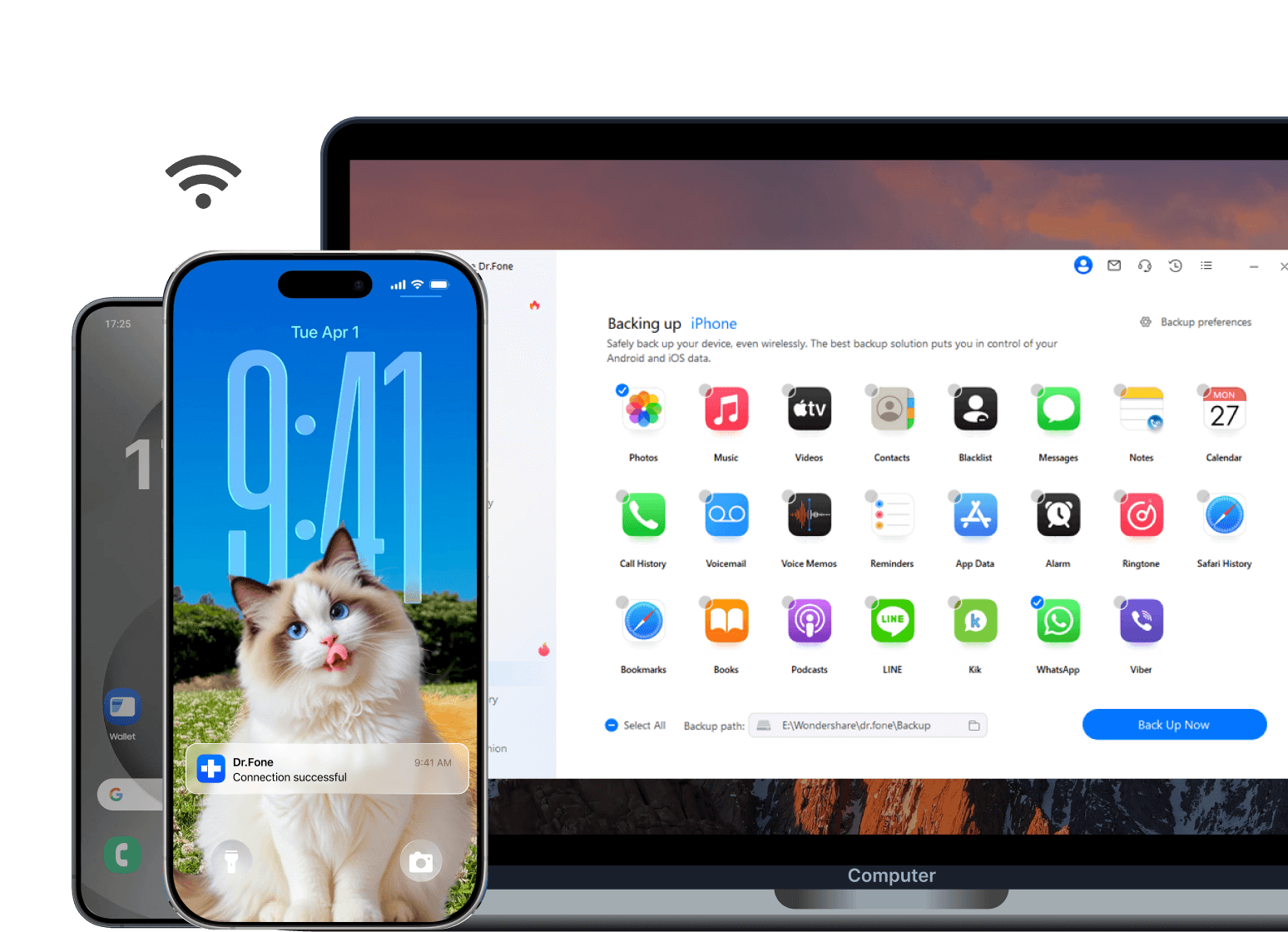
How to Transfer WhatsApp with Wondershare Dr.Fone
- Step 1: Install Wondershare Dr.Fone
Download Wondershare Dr.Fone on your Windows PC or Mac.
- Step 2: Connect Both Devices
Use USB cables to connect both the Android phone and iPhone 17.
- Step 3: Open WhatsApp Transfer
Launch Wondershare Dr.Fone and select:
WhatsApp Transfer → Transfer WhatsApp Messages
Ensure the Android device is selected as the source and the iPhone 17 is selected as the destination.
- Step 5: Start the Transfer
Click Transfer and wait for the migration to finish.
Once completed, sign into WhatsApp on the iPhone 17 using the same number. Chats and media should automatically appear on the device.
Common WhatsApp Transfer Problems in 2026
WhatsApp Transfer Stuck During Migration
Large backups, unstable Wi-Fi, or interrupted connections can cause migration failures. Compared with wireless-only migration methods, Wondershare Dr.Fone uses direct device connections to improve transfer stability and reduce transfer time. According to Wondershare testing, WhatsApp migration with Wondershare Dr.Fone can be up to 70% faster than some official migration workflows when transferring large chat histories.
iPhone 17 Already Set Up
Apple Move to iOS only works during the initial setup process. Users who already configured their iPhone often choose Wondershare Dr.Fone because it does not require factory resetting the device.
Photos or Videos Missing After Transfer
Media syncing problems are common when transferring very large WhatsApp libraries. Before migration, users should ensure both devices have enough available storage and are running the latest WhatsApp version.
WhatsApp Business Not Transferring
Some migration methods only support standard WhatsApp accounts. Wondershare Dr.Fone supports both WhatsApp Messenger and WhatsApp Business transfers.
Tips Before Transferring WhatsApp Messages
Back Up Existing Chats
Always create a backup before starting any migration.
Keep Both Devices Charged
Large WhatsApp libraries may take considerable time to transfer.
Use Stable USB Connections
Cable interruptions are one of the most common causes of failed migration.
Update WhatsApp
Install the latest WhatsApp version on both devices before transferring data.
FAQ
- Can I transfer WhatsApp from Android to iPhone 17 after setup?
Yes. Apple’s Move to iOS only works during initial setup, but Wondershare Dr.Fone supports WhatsApp transfer even after the iPhone 17 has already been configured.
- What is the easiest way to transfer WhatsApp from Android to iPhone?
For users with a brand-new iPhone, Move to iOS may work well. For users who want more flexibility or need to avoid factory reset, Wondershare Dr.Fone is often the easier option.
- Can Wondershare Dr.Fone transfer WhatsApp Business?
Yes. Wondershare Dr.Fone supports both WhatsApp Messenger and WhatsApp Business migration.
- Will photos and videos transfer together with chats?
Yes. Wondershare Dr.Fone can transfer chats, photos, videos, voice notes, stickers, and attachments together.
- Why does WhatsApp transfer fail sometimes?
Migration failures are commonly caused by unstable connections, outdated WhatsApp versions, insufficient storage space, or interrupted setup processes.
Final Thoughts
As more users switch between Android and iPhone each year, WhatsApp migration remains one of the biggest setup challenges. While Apple’s built-in tools work for some users, they still come with limitations around setup timing, factory resets, and large chat histories.
For users who need a more flexible Android-to-iPhone migration workflow in 2026, Wondershare Dr.Fone provides an alternative solution for transferring WhatsApp chats, media files, and WhatsApp Business data to iPhone 17.