
Jira is a robust project management platform that facilitates communication among development teams, users, and testers while gathering essential data. However, this data needs to be analyzed, organized, and interpreted to be helpful. That's where business intelligence software like Tableau comes in. Tableau enables users to transform raw data Jira collects into valuable insights that can inform business decisions.
This article will explore the benefits of Tableau Jira integration and provide best practices for its effective implementation. With these tips, businesses can maximize the potential of this integration and streamline their project management and data analysis processes.
Jira and Tableau: Two Essential Software Tools
Jira, a popular software tool, was primarily developed to manage bug tracking and agile project management. It allows development teams to communicate with users and testers and collect valuable data on project progress, time spent on tasks, and issues encountered during work. However, interpreting this raw data can be a challenge.
It is where Tableau, a powerful business intelligence software, comes in. Tableau's capabilities include trend tracking, insightful analysis, and decision-making support, allowing managers to stay ahead of schedule. It can process and present the data collected by Jira in an easily understandable format, making it easy for managers to create detailed reports on each project's status.
Despite its advanced features, Tableau is easy to use, making it accessible even to non-technical users. The software allows the creation of interactive dashboards, data maps, and charts, enabling users to navigate and extract insights from large volumes of data quickly.
Integrating Jira and Tableau gives managers a comprehensive view of their projects' key performance indicators, including customer satisfaction, development, support costs, and other helpful information. By leveraging Tableau Jira integration, managers can improve their project management strategies, enhance productivity, and at least drive business growth.
Why Perform Tableau Jira Integration
Tableau and Jira integration is a powerful tool for companies that want to make better business decisions based on data analytics. By combining data from Jira with insights from other software and tools, Tableau can create visually appealing dashboards and informative charts to help companies see the bigger picture of their business operations.
There are numerous benefits to integrating Tableau with Jira, and many companies choose to do so to streamline their project management and data analysis processes:
Improved Data Visualization
By using Tableau to present Jira data, companies can create visually appealing dashboards and charts that are easily understandable for non-technical stakeholders, including customers and business partners.
Combined Data Sources
The integration of Jira with other software and tools like CRM, ERP, ITSM, etc., enables companies to track all their business operations in one place, providing a comprehensive view of the company's performance and identifying areas that require improvement.
Customizable Reporting
Tableau allows companies to build customized reports using Jira data, enabling users to create reports on multiple Jira projects, use custom fields for reporting, and add-ons data to generate more detailed Jira reports.
Predictive Analytics
By analyzing data collected from multiple sources, companies can use Tableau to identify future business and customer trends, which can be used to develop effective business strategies and stay ahead of the competition.
Increased Productivity
Companies can use Tableau insights to identify areas where productivity can increase, highlighting strengths and weaknesses. This information can be used to develop plans to improve productivity and enable teams to work more efficiently.
Tableau Jira Integration Best Practices
Now that we understand the benefits of integrating Tableau with Jira, and to maximize these advantages, we must follow best practices that ensure accurate data, streamlined workflows, and effective communication between teams.
However, to make the most of this integration, companies should follow best practices that ensure the system's smooth operation and maximize the data's potential. Here are some of the best practices for Tableau Jira integration:
Establish Clear Objectives
Before starting the integration, it is essential to define the goals and objectives of the Tableau Jira integration, including tracking metrics, analyzing data, and making informed business decisions. These objectives should be clearly communicated to all stakeholders involved in the integration process and serve as the basis for developing the integration strategy. By defining clear goals, companies can ensure that the data generated by the integration is valuable and actionable.
Use Standardized Data
Using standardized data in Tableau Jira integration means that data is consistent across both Jira and Tableau. Consistency in the data leads to correct analysis and accurate understanding, which can positively impact business performance. Standardization can involve using standard data definitions, ensuring data accuracy, and removing duplicate or unnecessary data. As a result, it becomes easier to analyze and visualize, improving the accuracy and usefulness of the insights derived from it.
Map Data Correctly
When data is transferred from Jira to Tableau, it must be accurately mapped to ensure that the data is appropriately translated and displayed in Tableau. Defining and maintaining a clear mapping plan throughout the integration process is essential to ensure the data is correctly transferred and accurately reflected in Tableau. It helps avoid data inconsistencies or inaccuracies leading to incorrect acuities and decision-making.
Secure Your Data
Securing data is a crucial consideration for any integration, and ensuring that access to the data is limited to authorized personnel is essential. It can be achieved by using encryption to protect the Jira data export, implementing strong access controls to limit access to sensitive data, and ensuring that all personnel involved in the Tableau Jira integration are trained on data security best practices.
Seamless Data Export
Seamless data export refers to exporting data from Jira to Tableau without disruptions or errors. It ensures that the data is exported accurately and on time, eliminating the need for manual data entry. One way to ensure seamless data export is using the Tableau Connector for Jira. This connector acts as a bridge between Jira and Tableau, facilitating data transfer between the two systems. It can save time and reduce the potential for errors associated with manual data transfer.
How to set up Tableau Jira Integration
Tableau Connector for Jira by Alpha Serve is an enterprise-grade app that enables seamless integration between Tableau and Jira. It is a no-code integration, requiring only three simple steps: create a data source, copy the data source URL, and export data from Jira to Tableau.
The Tableau Connector for Jira boasts many features, including advanced filtering options, exporting any Jira fields, and secure data sharing and access management. Trusted by many leading organizations, Tableau Connector for Jira is an excellent solution for businesses seeking seamless Tableau Jira integration.
To set up Tableau Jira integration, follow the steps below:
Step 1: Install Tableau Connector for Jira
Firstly, users must install the Tableau Connector for Jira from the Atlassian (News - Alert) Marketplace.
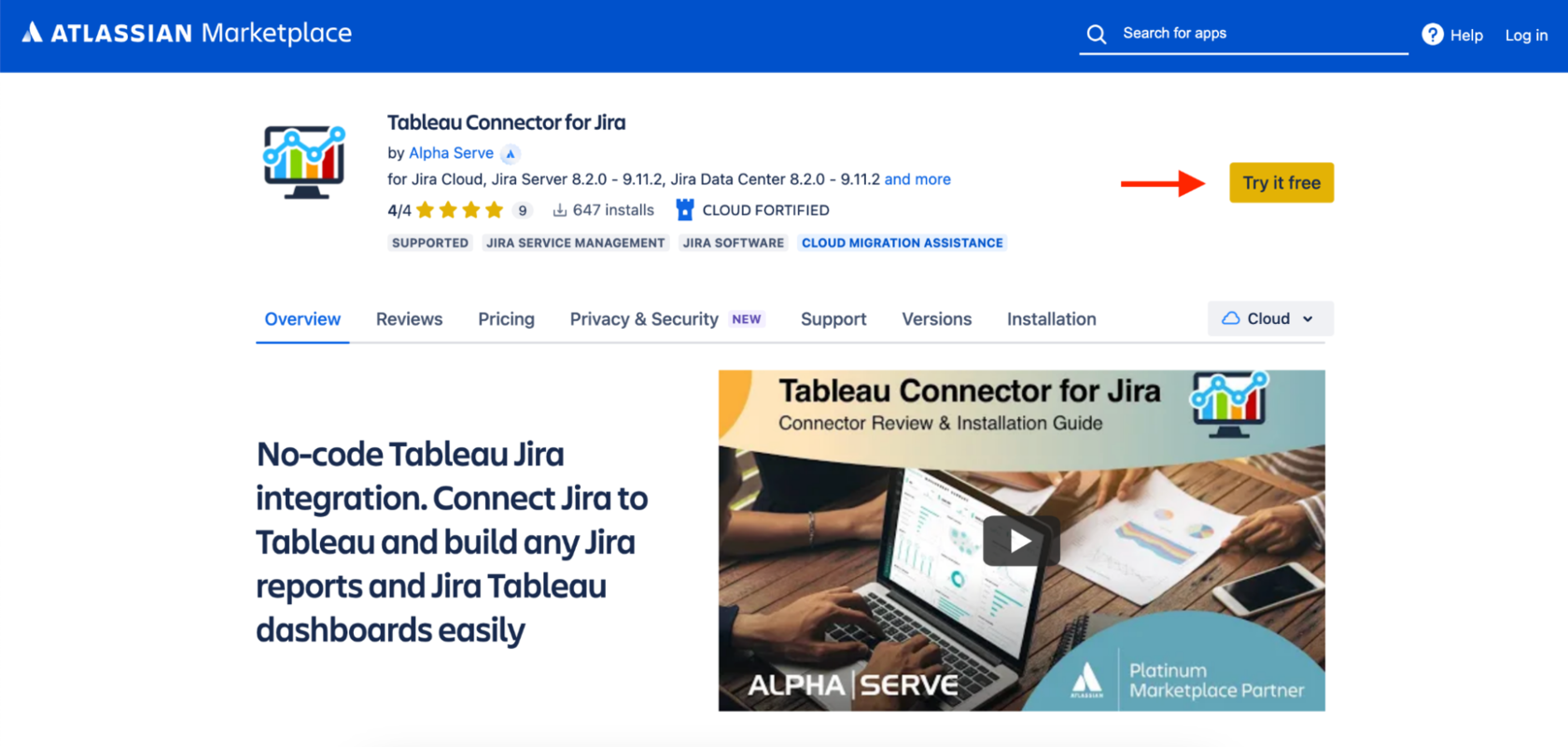
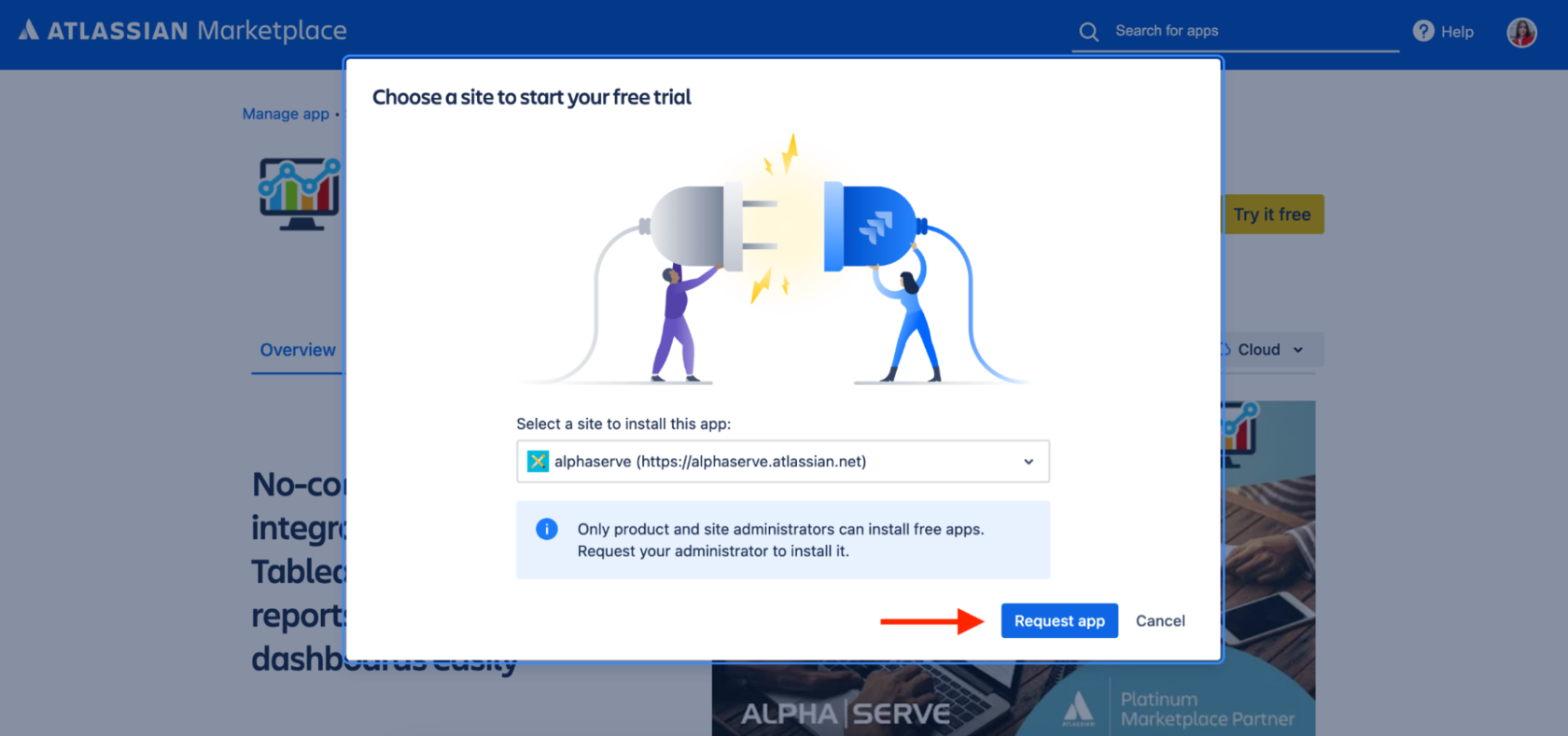
If you are not a Jira admin, you must request your administrator install it. Just find the connector on the Atlassian Marketplace and click the “Try it free” button, then select a site to install the app and click “Request app.” A notification will then appear in the interface your administrators use to administer add-ons.
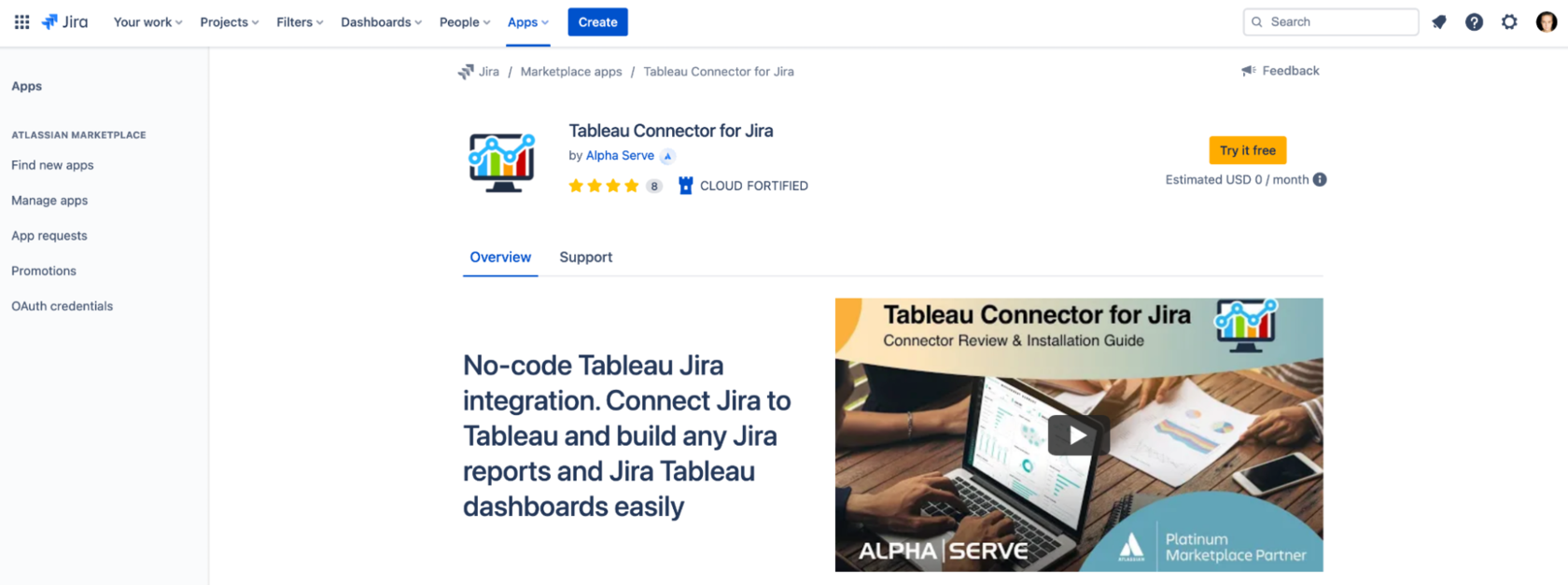
If you are a Jira admin, log in to your Jira Cloud, go to the Jira Cloud Apps section, and click "Explore more apps."
Enter "Tableau Connector for Jira Alpha Serve" in the search field and locate the application in the search results. Click "Try it free" to obtain a 30-day trial license.
You’ll be notified about successful installation.
Step 2: Grant Permissions to Work with Tableau Connector for Jira
After installation, the connector is only available to the Jira Admin. To allow users to use the Tableau Connector for Jira, the Jira Admin must grant permissions to certain users or user groups. To grant permissions, go to the "Administration" section of the app and click the "Edit" icon. From there, select which groups or individual users you want to grant permission to create, watch, edit, or export connectors. You can select multiple groups or individual users.
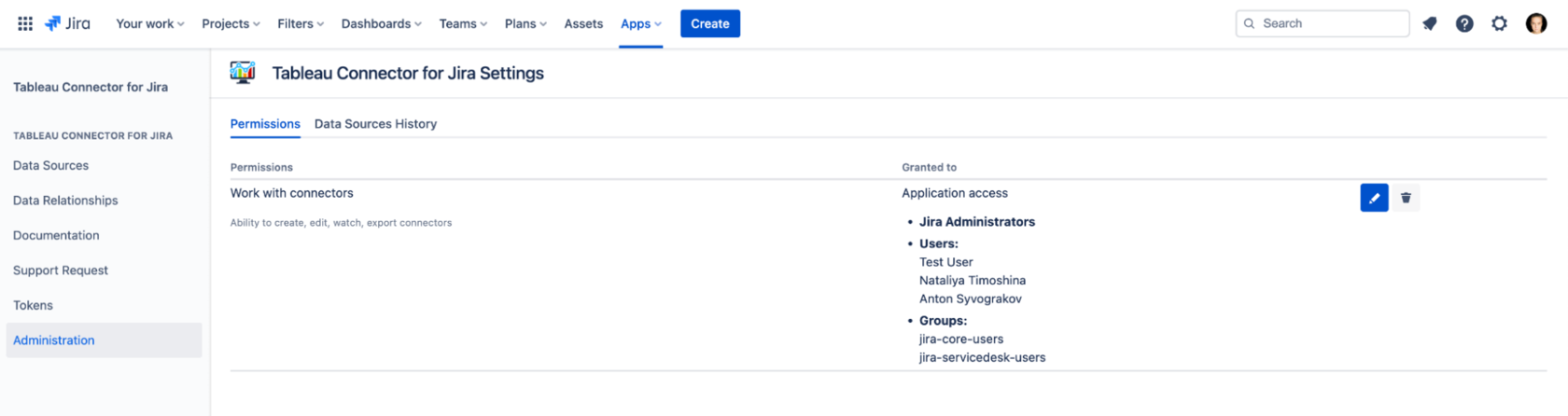
Once you have made your selections, save the permissions by clicking the "Save" button. It will allow the selected users or groups to use the Tableau Connector for Jira.
Step 3: Create an Access Token
Access the Tableau Connector for Jira app and go to the Tokens tab. Click "Create new token."
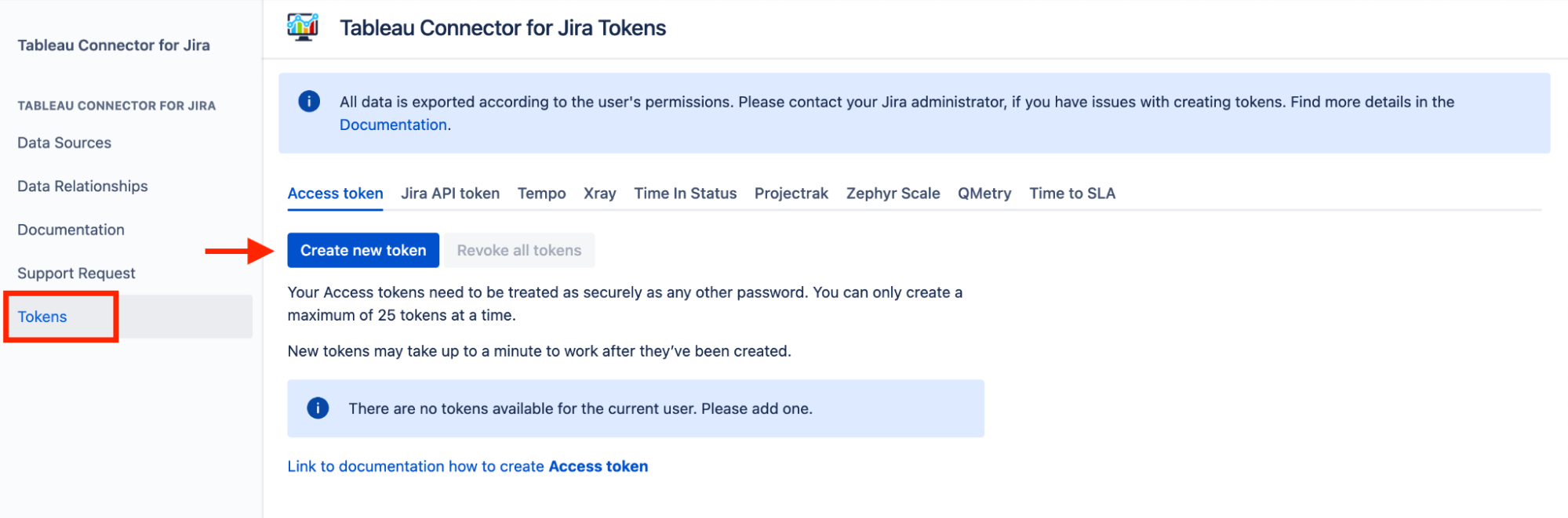
Enter a short, memorable label and click "Create."
Copy the generated Access Token; it won't be visible again once you leave the page.
Note! You will need to use this access token as your password to authenticate to Tableau.
Step 4: Create a Data Source (News - Alert) in Tableau Connector for Jira
Now, you need to create a Data Source. To do this, follow these steps:
1. From the Data Sources tab, click the "Create a Data Source" button.
2. Define the data source by providing a name and a brief description to clarify its purpose.
3. Choose whether to share the data source and configure the share settings accordingly, specifying relevant user groups or individuals with access.
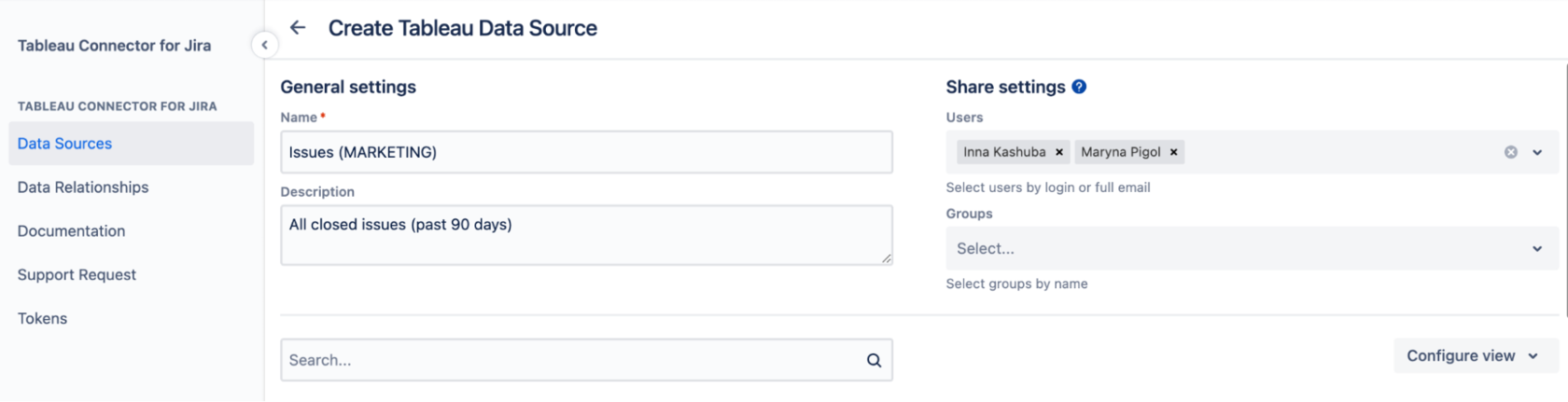
4. Decide how you want to filter the data; you can either select to use JQL for a custom data filter or utilize basic filters.
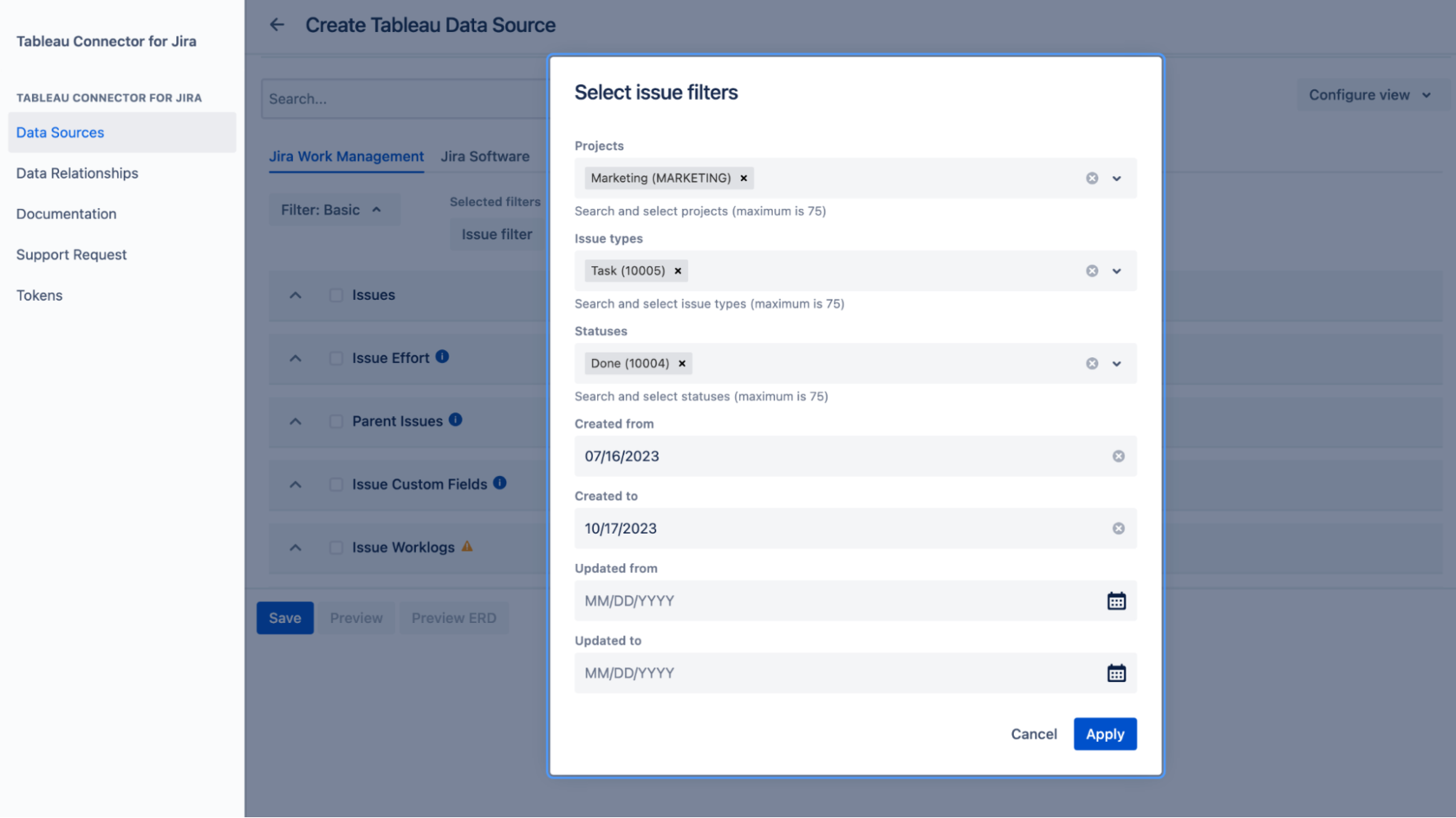
5. Select the relevant fields by searching for specific ones and adding them to your data source, using the magnifier tool if needed. Finalize your field selections by checking the appropriate ones from the provided list.
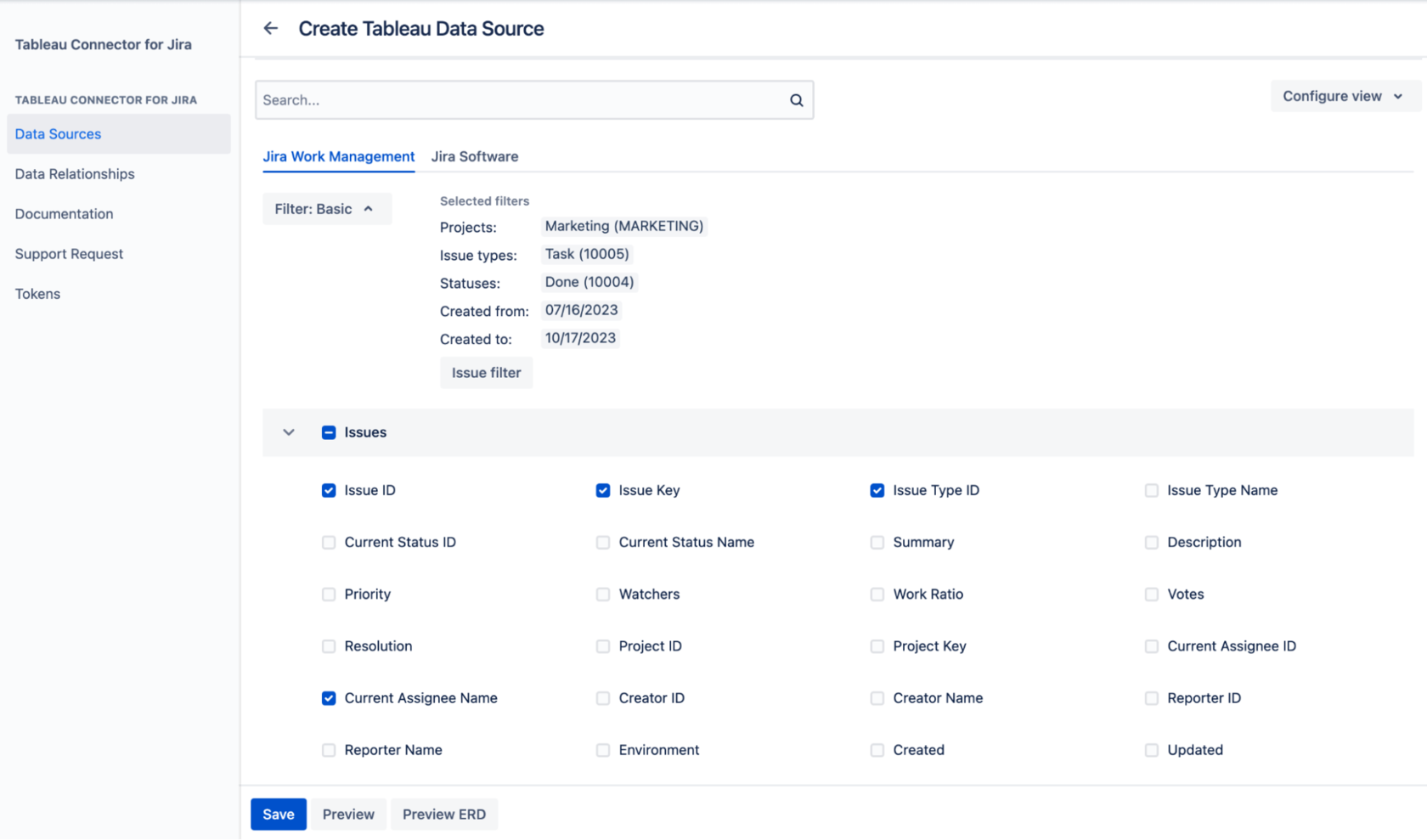
6. Once satisfied with your configurations, save the data source by pressing the "Save" button.
Additionally, you can preview your configurations using the "Preview" feature. Furthermore, you can examine the relationships between tables by utilizing the "Preview ERD" button.
Step 5: Export Data from Jira to Tableau
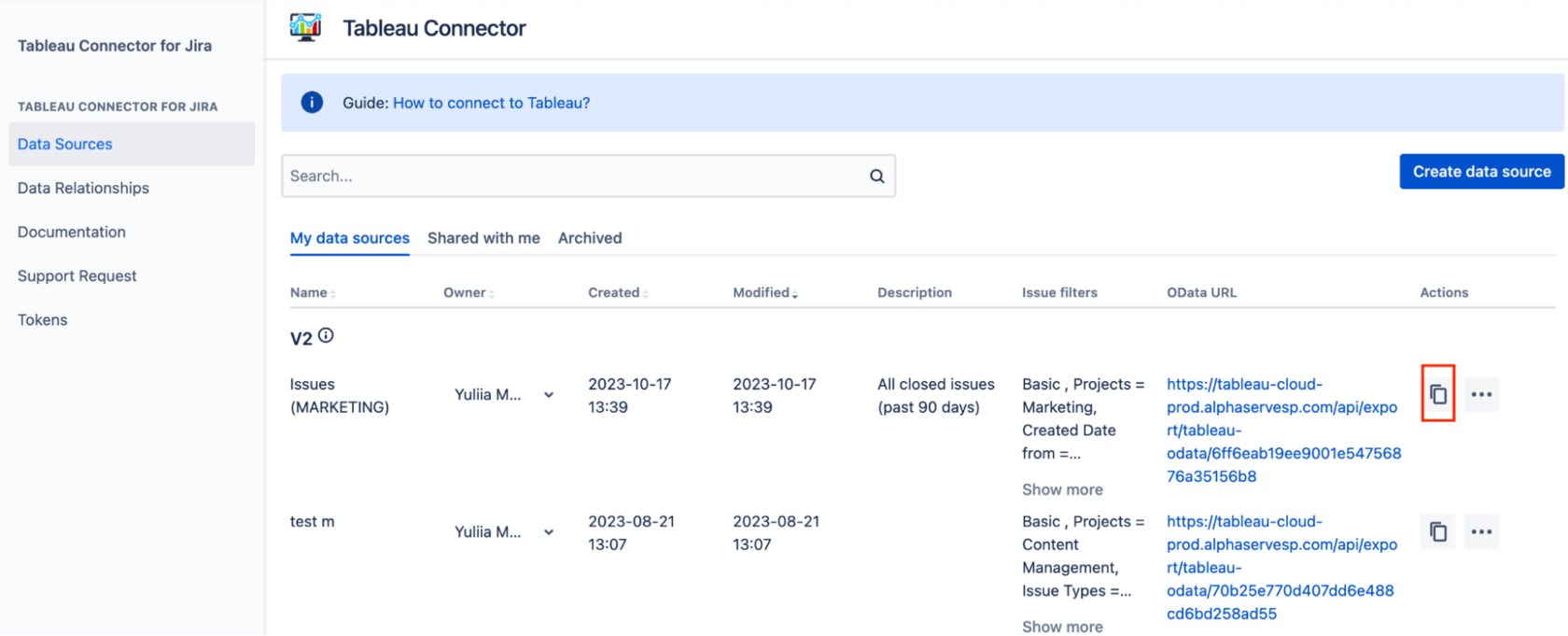
Navigate to the Data Sources tab and find the data source created on the previous step. Click the "Copy" icon to copy the Data Source URL.

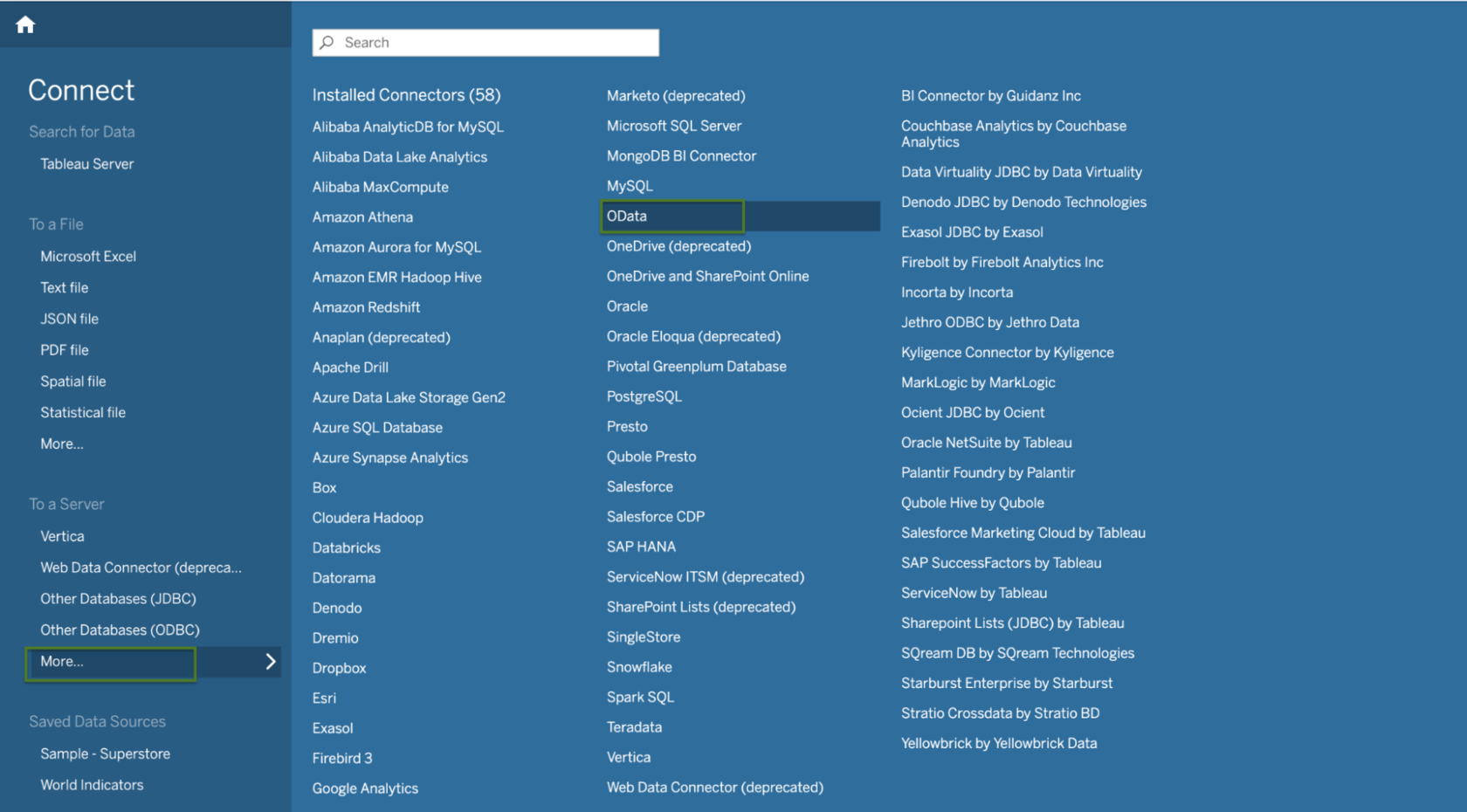
Then, launch Tableau Desktop and select "OData"
In the opened window, enter the copied URL. Additionally, opt for Username and Password authentication. The username should be the email associated with Jira, and the password should be the Access Token.
Following the process, the data will be promptly loaded into Tableau. The process might take some time if there's a substantial amount of data to be imported. Post this, you're all set to proceed to Sheet 1. Here, you can create graphs and dashboards based on the imported Jira data. To get started, simply choose the visualization type and select the specific data you wish to feature on the graph or dashboard.
Conclusion
To make the most of the data gathered by Jira, project management platforms need additional tools like Tableau. By following best practices for the integration process, such as establishing clear objectives, using standardized data, correctly mapping data, securing data, and implementing seamless data export, companies can ensure the system's smooth operation and maximize the data's potential.
Tableau Jira integration is an excellent way for businesses to make better decisions based on data analytics and stay ahead of the competition. By integrating Tableau with Jira, you can gain insight into your company's processes, market trends, and customer behavior, allowing you to develop better strategies and optimize your workflow.